Nov 13, 2025
Productivity
How to Record Google Meet: A Complete Guide for 2026
Figuring out how to record Google Meet should be easy. You poke around the Activities menu, find "Record meeting," and you're good to go. But what happens when that button just isn't there? If you’ve hit that wall, don't worry—you have other, and frankly, often better options. This is your no-nonsense guide to getting it done, whether you have the "right" account or not.
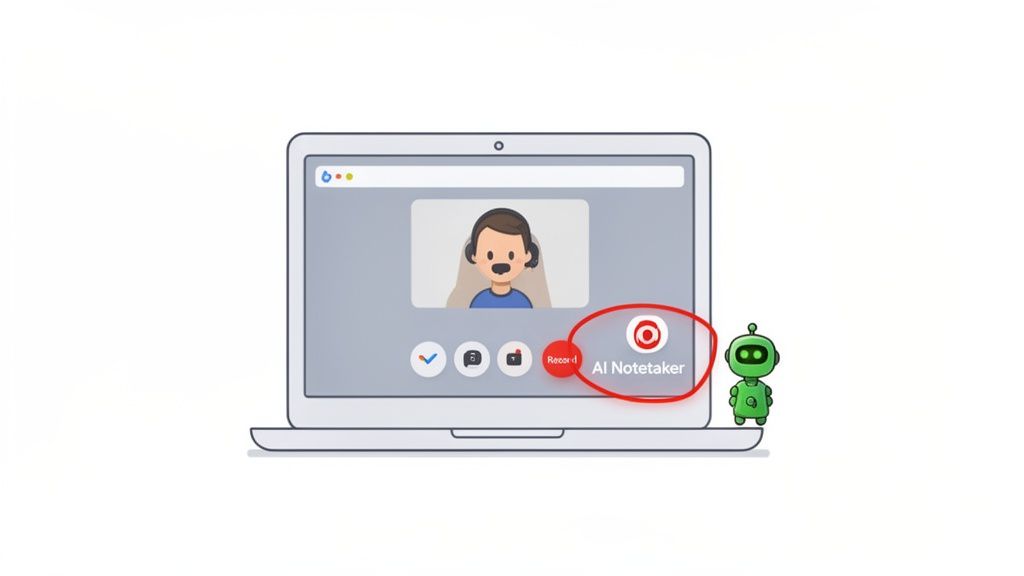
The Two Paths to Capturing Your Google Meet Call
Whether you’re a sales manager needing to review a crucial client demo or a project lead sharing a team sync with absentees, recording your meetings is non-negotiable. The path you take really boils down to your account permissions and what you need to do with the information afterward.
There are two primary methods to record Google Meet. The first is Google’s own built-in recording feature. It’s simple, but it’s walled off behind specific (and pricey) Google Workspace accounts. The second route involves using an outside tool, which opens up a world of flexibility and advanced features—especially when the native option is a no-go.
Native Recording vs. Smart Alternatives: What's Right for You?
So, how do you choose? It really comes down to a few practical questions you need to ask yourself:
Permissions: Are you the meeting host with a paid plan? Or are you an attendee who just needs a record of the conversation?
The Final Product: Do you just want a simple video file? Or would you get more value from a searchable transcript, automated summaries, and a list of action items?
Your Workflow: How will you share this? Do you need to push notes into a CRM, or just send a link to your team?
If you have the right account and all you need is a basic video file, the native recorder works just fine. But for anyone who can’t use it—or who wants to turn messy conversations into clean, usable data—a bot-free AI notetaker like GLINKY is a much smarter play. It works for anyone in the meeting, no host permissions needed, and focuses on making information useful. After all, the goal isn't just to record, it's to track action items and move work forward.
Let’s take a quick look at how these two main options stack up.
Google Meet Recording Options at a Glance
This table gives you a quick breakdown of what you get with Google's native recorder versus a dedicated AI notetaker.
Feature | Google Meet Native Recording | GLINKY (AI Notetaker) |
|---|---|---|
Availability | Restricted to specific paid Google Workspace plans | Works with any Google Meet account (Free & Paid) |
Permissions Needed | Host or co-host with the right subscription | None; any meeting participant can use it |
Primary Output | MP4 video file and a basic text transcript (VTT file) | AI summaries, detailed transcripts, and extracted action items |
Meeting Disruption | Notifies all participants that recording has started | Invisible capture; no bot joins the call |
Integration | Saves to the host's "Meet Recordings" folder in Google Drive | Automates updates to CRMs like Salesforce & HubSpot |
Best For | Simple video archiving when you have the right account access | Turning conversations into actionable data without host permissions |
As you can see, the right tool depends entirely on your goal. A raw video is one thing, but structured, actionable intelligence is another.
For a deep dive into every method, including screen recorders and advanced troubleshooting, this complete guide to recording Google Meet is an excellent resource.
Knowing these differences upfront saves you from scrambling mid-meeting. You can choose the right tool for the job every time and be confident that no critical information will ever slip through the cracks. In the next sections, we'll get into the specifics of each method.
Using Google Meet’s Native Recording Feature
If your organization is already on Google Workspace, using the built-in recording feature is the most straightforward way to capture a meeting. It's designed to be simple, but there's a catch: access isn't universal, and that's a frequent source of frustration.
Let's clear up the confusion. The ability to record is directly tied to specific, paid Google Workspace subscription plans. It's not available for anyone using a standard, free Gmail account. So, if you're hunting for the 'Record' button and can't find it, it's almost certainly because your account doesn't have the right license.
Key Takeaway: You have to be the meeting organizer or at least in the same organization as the host to hit record. Guests from outside the organization can't start a recording, even if their own account has the feature.
Who Can Record on Google Meet
Think of native recording as a premium feature. It’s generally included for users on most Google Workspace Business, Enterprise, and Education plans.
This usually covers:
Business (Standard and Plus)
Enterprise (Starter, Standard, and Plus)
Education (Plus and the Teaching and Learning Upgrade)
One more thing to keep in mind: your Google Workspace administrator holds the master key. They can enable or disable recording for the entire company or even for specific people. If you’re sure you have the right plan but still can’t see the option, a quick chat with your IT department is your next step.
How to Start and Stop a Recording
Once you've confirmed you have access, the actual process is dead simple.
When you're ready to go, look for the Activities icon—it's the one with the triangle, square, and circle—in the bottom-right corner of your meeting window. Click on that, and you'll see the Recording option.
Google will then prompt you to get consent from everyone in the call. Once you click Start recording, a clear red “REC” icon pops up in the top-left corner. At the same time, every attendee gets an automated notification that the meeting is being recorded. While this built-in alert is helpful, it’s always good practice to verbally announce you’re starting the recording.
Stopping is just as easy. Go back to the Activities menu, select Recording, and hit Stop recording. The recording will also end on its own once the last person leaves the meeting.
Finding and Sharing Your Recordings
After you stop the recording, Google takes care of the rest. You don’t need to do anything.
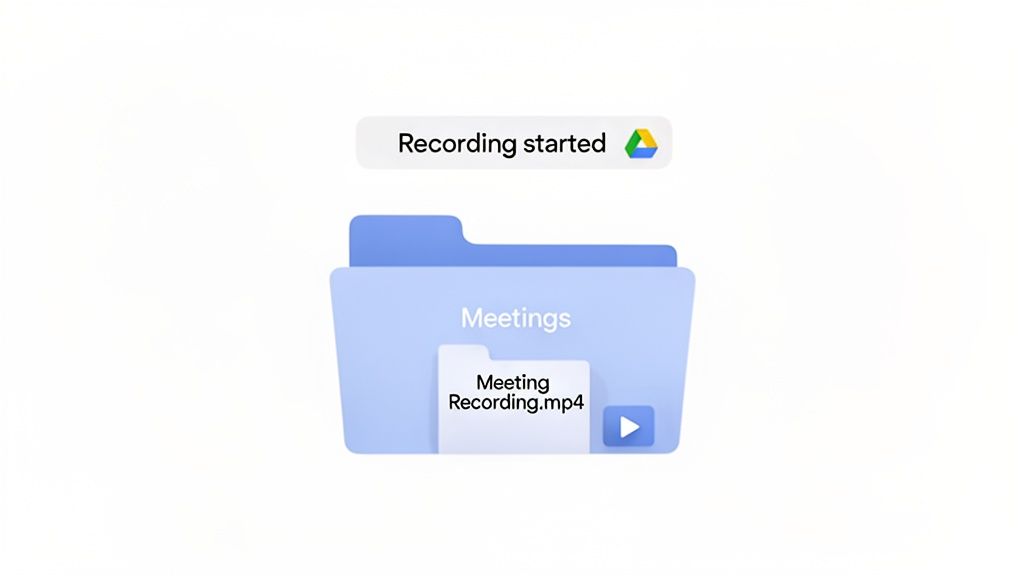
Depending on how long the meeting was, you'll get an email with a link to the recording anywhere from a few minutes to a couple of hours later. The video file itself gets saved directly into the meeting organizer’s Google Drive, inside a folder called “Meet Recordings.”
This folder is created automatically the first time you record a meeting. Each file is conveniently named with the meeting's title and date, so you won't have to guess which recording is which.
Sharing is also handled smartly. By default, the recording is automatically shared with all calendar invitees who are part of the host's organization. From there, you can share the file directly from Google Drive just like any other document, giving you complete control over who gets to see it.
Why Can’t I Record on Google Meet? Common Problems and Fixes
It’s a classic, frustrating moment. You’re in a critical meeting, ready to capture the discussion, and the record button is either completely gone or stubbornly greyed out. We've all been there. Understanding what's happening behind the scenes is the first step to getting things working.
The most common roadblock is simply your account type. Google Meet’s built-in recording is a premium feature, which means it’s off-limits if you're using a standard, free Gmail account. If you’re not on a paid Google Workspace plan, you just won't have the option.
Even if you do have a paid plan, permissions are everything. The power to record is reserved for the meeting organizer or another participant from the same organization. If you’ve joined as an external guest, that button will be disabled for you, no matter what kind of account you have.
Solving the Permission Puzzle
When the record button is out of reach, don't sweat it. There are a few clear things you can check to diagnose the issue and get it sorted out.
First, double-check your account license. If you're pretty sure you should have access, a quick message to your IT administrator can confirm if recording permissions are actually enabled for your account. It's not uncommon for an organization’s policy to disable recording by default for certain users.
If you’re a guest in the meeting, the solution is even more straightforward: you have to ask the host. A simple message in the chat usually does the trick. Something like, “Hey, would you mind recording this session for our notes?” works wonders. The host can start the recording and simply share the file with you later.
Pro Tip: If you constantly need to record meetings you don't host, asking the organizer every time isn't a reliable strategy. This is where third-party tools become your best friend, since they run on your machine and don’t depend on anyone else’s permissions.
Troubleshooting Technical Glitches
Okay, so sometimes you have the right plan and the right permissions, but technology just doesn’t cooperate. Failed recordings or files with missing audio can feel like a complete disaster, but there are ways to prevent these headaches.
A recording that fails to process and never shows up in your Google Drive is a common one. This can happen because of a quick server-side hiccup or if the meeting was incredibly long. Unfortunately, there's no way to recover a recording that Google fails to process on its end.
To sidestep this, try these quick fixes:
Stable Connection: Before you hit record, make sure your internet is solid. A dropped connection is a surefire way to corrupt the file.
Split Long Meetings: For marathon sessions that run for hours, get in the habit of stopping and restarting the recording every hour or two. This creates smaller, more manageable files that are far less likely to fail during processing.
Check Your Storage: Make sure you have enough free space in your Google Drive. A full drive means new recordings have nowhere to go.
If you end up with a recording with no sound, the first thing to check is that you selected the correct microphone and speaker in Google Meet before the call started. If the problem keeps happening, looking into alternatives like screen recorders or AI notetakers that capture system audio directly can give you a much more reliable backup.
Smarter Alternatives to Basic Google Meet Recording
Let's be honest. A raw video recording is often not the answer. When you’re trying to pull actionable insights out of a meeting to actually get work done, a simple video file just creates more work. This is especially true when Google's built-in recorder isn't an option or simply doesn't cut it for your needs.
Sure, you could use a traditional screen recorder as a quick fix. It’ll capture your screen and audio, giving you a video file no matter what your permissions are. But this approach is a trap. It's a clunky, manual process that leaves you with massive, unsearchable video files that devour your storage space. Trying to find one key detail in a one-hour recording is a nightmare.
The Problem with Traditional Screen Recorders
Using a generic screen recorder might feel like a step up from nothing, but it quickly introduces a new set of headaches that will slow you and your team down.
Total Manual Effort: You have to remember to hit record, stop it, save the file, name it something you can find later, and then figure out where to store it. It's just more admin work on your plate.
Massive File Sizes: A single hour-long meeting can easily create a file over 1 GB. For teams that meet frequently, this becomes a serious storage bottleneck, fast.
Locked-In Information: The conversation is completely trapped inside the video. You can't search for keywords, a specific person's name, or a topic that was discussed. It's a black box.
If you're exploring these external tools, knowing how to screen record with sound on any device is definitely a good starting point. But even then, you’re still left with a raw video that demands hours of manual review to be of any real use.
The Rise of Bot-Free AI Notetakers
This is where a totally new class of tools changes the game: bot-free AI notetakers. Unlike older AI tools that clumsily add a "bot" to your call—which always feels a bit awkward and intrusive—this modern tech captures meeting intelligence without ever joining your meeting. It works silently in the background, preserving the natural feel of the conversation.
A tool like GLINKY is a perfect example of this. It doesn't need an invite or any special host permissions. It just works, natively recognizing who is speaking and capturing every detail with impressive accuracy. This lets you stay completely present and focused on the discussion, not on taking notes.
This shift from a simple recording to an intelligent summary is a game-changer. Instead of a passive video file, you get structured, usable data that actively helps you move work forward.
The real magic happens after the meeting ends. All those spoken words are transformed into a clean summary, neatly identified action items, and a list of key questions that were asked. For a sales team, this means automatically highlighting critical customer objections and commitments. For a recruiter, it means capturing a candidate's key answers without having to type like a maniac.
This tech also smooths out your entire workflow. Instead of having to manually update your systems after a call, GLINKY can automatically sync meeting outcomes and action items right into your CRM, like Salesforce or HubSpot. It ensures your system of record is always accurate and up-to-date.
This isn’t just about recording anymore. It's about turning your everyday conversations into a reliable source of structured, searchable intelligence that drives your business.
How to Choose the Right Recording Method for Your Role
Let’s be honest, hitting "record" on a Google Meet is the easy part. The hard part is choosing the right way to record so the video file isn't just a digital paperweight sitting in your Google Drive.
The best method depends entirely on what you plan to do with that recording. A sales manager coaching their team has wildly different needs than a project manager trying to pin down project scope. A simple video file is just raw material; turning it into actionable intelligence requires the right tool for the job.
For the Sales Manager Coaching a Team
As a sales manager, your goal isn’t to just archive calls. You need to dissect them. You're looking for coaching moments—how your reps handle tough objections, whether they're nailing the value prop, and what separates your top performers from the rest.
Native & Screen Recorders: Sure, they give you a video. But that means you're stuck manually scrubbing through hours of footage to find a single 30-second coaching opportunity. It's a time-sink and impossible to scale across an entire team. You get a recording, but zero intelligence.
AI Notetaker (like GLINKY): This is where you get your time back and gain real leverage. An AI notetaker automatically transcribes the call and identifies who said what. You can instantly search for competitor mentions, pricing questions, or specific objections across dozens of calls. It turns a messy video archive into a structured performance database.
The right tool transforms a simple recording into a performance analysis powerhouse. Instead of just watching a video, you get structured data that helps you build a stronger sales team. For more on this, check out our guide on the best sales call recording software available today.
For the Project Manager Capturing Requirements
Now, put on your project manager hat. You’re in a critical stakeholder meeting where every detail matters. One missed requirement or misunderstood decision can send the entire project off the rails weeks later. Your primary job is to capture a flawless source of truth.
A native or screen recording provides a safety net, but it creates more work. You still have to re-watch the entire meeting, manually type up notes, create a project plan, and assign out tasks. It’s a huge administrative burden.
An AI notetaker, on the other hand, does the heavy lifting for you. It automatically extracts action items, decisions, and key takeaways into an instant summary. You can copy-paste this directly into your project management tool, cutting down on administrative work by up to 90% and virtually eliminating the risk of human error.
For the Consultant Documenting Discovery Calls
Finally, picture yourself as a consultant on a new client discovery call. Your success hinges on being 100% present. You need to listen, ask probing questions, and build rapport—not have your head buried in a notebook trying to catch every word. The recording is your backup, allowing you to draft a killer proposal later.
In this scenario, a bot-free AI notetaker is a game-changer. It lets you focus entirely on the human connection with the client. After the call, you get a perfect transcript and an AI-generated summary that highlights the client's core challenges and goals.
This summary becomes the backbone of your proposal, ensuring it speaks directly to everything you discussed. It proves you were listening intently and positions you as a sharp, professional partner from day one.
Which Google Meet Recording Method Is Right for You?
Choosing your tool really comes down to what you need to do with the recording. Are you just archiving, or are you looking for intelligence, efficiency, and a competitive edge? This table breaks down the core differences to help you decide.
Consideration | Native Google Meet Recording | Third-Party Screen Recorder | GLINKY (Bot-Free AI Notetaker) |
|---|---|---|---|
Primary Use Case | Basic archival; sharing a raw video file for reference. | Simple archival when native recording is unavailable. | In-depth analysis, coaching, extracting action items, and creating summaries. |
Setup & Ease of Use | Simple, built into Google Meet. Just click "Record." | Requires installing and running a separate application. | Easy setup with a native app; runs invisibly in the background. |
Output | A single MP4 video file saved to Google Drive. | A video file (MP4, MOV, etc.) saved locally to your computer. | MP4 video, full transcript, AI summary, and extracted action items. |
Key Advantage | Seamless integration with the Google ecosystem. | Works for any meeting, even if you're not the host. | Turns conversations into structured, searchable data and automates follow-up tasks. |
Main Drawback | Lacks any analytical features; requires manual review. | Completely manual process for saving, organizing, and analyzing. | Not designed for "live" in-call assistance (to maintain its invisible nature). |
Best For | Casual internal meetings where a basic video record is sufficient. | Users on free Google accounts or those needing to record other screen activity. | Sales managers, project managers, consultants, and anyone needing to extract value from meetings. |
Ultimately, while native and screen recorders offer a basic function, they create more manual work. An AI notetaker like GLINKY is built for professionals who understand that the real value of a meeting happens after the call ends.
Frequently Asked Questions About Recording Google Meet
Once you start thinking about recording your Google Meets, the questions start piling up. It's not just about hitting the record button. You've got to think about the law, where the files go, and who even has permission to do it. Let's clear up the most common questions people run into.
Is It Legal to Record a Google Meet Without Permission?
This is a critical point. Recording a meeting without getting consent first can land you in serious legal trouble. The rules change drastically depending on where your participants are dialing in from.
Some places have "one-party consent" laws, which means as long as you (the recorder) are part of the conversation and consent, you're in the clear. However, many states and countries operate under "two-party" or "all-party consent." This means you need explicit permission from every single person in the meeting before you can record. The responsibility to get that consent falls squarely on you.
The best way to handle this is to be upfront. Just kick off the meeting with a simple, "Hey everyone, just a heads-up that I'll be recording this call for our notes." It's transparent, professional, and keeps you on the right side of the law. Google's native recorder automatically notifies everyone, but if you're using another tool, this verbal confirmation is non-negotiable.
How Much Storage Does a Google Meet Recording Use?
This is a bigger deal than most people think. A native Google Meet recording's file size depends on the length and quality, but a typical one-hour HD call can easily chew up 1 GB or more of your Google Drive space.
If your team records meetings often, that storage usage adds up fast. Before you know it, you're staring down a "storage full" notification and an unexpected bill for a Google Workspace upgrade. This is one of the main reasons teams switch to AI notetakers—a detailed transcript and summary take up a tiny fraction of the space a video file does, giving you the key insights without the storage burden.
Can I Record a Google Meet if I Am Not the Host?
Usually, no. Google keeps the recording feature locked down for the meeting organizer. Sometimes other people within the same organization as the host can record, but if you're joining as an external guest, that record button will be grayed out for you.
If you're not the host but need a recording, you have a few options:
Actionable Tip: The simplest approach is to ask the host to hit record and share the file with you afterward.
Use a third-party screen recorder to capture what’s on your own screen and your computer’s audio.
Leverage a bot-free AI notetaker like GLINKY, which runs on your own machine and doesn't need host permission to capture the conversation.
What Happens if My Internet Disconnects During a Recording?
This is a huge weak spot for native recording. If you’re the one who started the recording and your Wi-Fi suddenly drops, the recording stops dead.
When you finally reconnect to the call, you’ll have to start a new recording. You’ll end up with two separate video files and a black hole in the middle where you missed crucial information. It’s a frustrating and surprisingly common problem. This is where a service that captures the audio stream from the cloud, independently of your personal connection, really shines. It guarantees a complete recording, even if you get kicked off the call.
Stop losing critical details in your meetings. GLINKY is a bot-free AI notetaker that captures every conversation, turning it into structured notes, action items, and clear summaries—all without an intrusive bot joining your call. See how it works and reclaim your focus at https://www.glinky.ai.
People also read

10 Sales Enablement Best Practices to Unify Your Revenue Engine in 2026
Productivity
Mar 13, 2026

How to Manage Sales Pipeline for Predictable Revenue Growth
Productivity
Mar 14, 2026

How to Qualify Leads in Sales Without Wasting Time
Productivity
Mar 17, 2026

What is Conversation Intelligence? A Practical Guide for Sales Teams
Productivity
Mar 18, 2026

Top 10 Sales Discovery Questions That Close More Deals
Productivity
Mar 25, 2026
Taking Minutes of Meeting: A Guide to Transforming Chaos into Action
Productivity
Feb 16, 2026
Action Items List: A Practical Guide to Drive Real Results
Productivity
Feb 19, 2026
Master the summary of a meeting for clear decisions and follow-ups
Productivity
Feb 22, 2026

Track Action Items: A Practical Guide to Using AI for Flawless Follow-Up
Productivity
Feb 17, 2026
Unlock: How to Take Notes on a Computer for Peak Productivity in 2026
Productivity
Feb 26, 2026
12 Best AI Note Taking App Choices for 2026: The Definitive Guide
Productivity
Mar 6, 2026

How to Improve Customer Retention: Practical Tips to Boost Loyalty
Productivity
Mar 8, 2026

10 Client Communication Best Practices to Master in 2026
Productivity
Mar 7, 2026
The 12 Best AI Meeting Assistant Tools for 2026: A Deep Dive
Productivity
Mar 15, 2026

Your Guide to the Ultimate AI Email Writer
Productivity
Feb 27, 2026

10 Essential Customer Success Best Practices for 2026
Productivity
Mar 1, 2026
Your Guide to Sales Call Recording Software in 2026
Productivity
Mar 2, 2026
How to Take Better Meeting Notes and Drive Real Results
Productivity
Mar 5, 2026

Top 10 Picks for best crm for small business
Productivity
Mar 3, 2026
What is an Ideal Customer Profile: A Guide to Driving Growth
Productivity
Mar 9, 2026
Automated meeting minutes: Turn talks into actionable notes
Productivity
Mar 11, 2026

The Top 12 AI Powered Sales Tools to Boost Revenue in 2026
Productivity
Mar 16, 2026
AI Note Taking For Meetings: Fast, Smart AI Notes That Drive Collaboration
Productivity
Mar 19, 2026
Understanding Transcription Service Cost: A 2026 Guide
Productivity
Mar 20, 2026
Master Your Meetings With The Note Taking Charting Method
Productivity
Feb 18, 2026
The Ultimate 2026 Guide: 8 Meeting Follow Up Email Template Scenarios
Productivity
Feb 20, 2026
Master the Art of Taking Meeting Notes for Actionable Outcomes
Productivity
Feb 25, 2026

12 Best Sales Lead Generation Tools to Boost Your Pipeline in 2026
Productivity
Mar 10, 2026
Translation Vs Transcription: Which Service Do You Really Need?
Productivity
Mar 12, 2026
Mastering the goals of a meeting to drive decisions and boost team alignment
Productivity
Mar 23, 2026

The 12 Best Free AI Email Writer Tools for 2026
Productivity
Mar 22, 2026

A Guide to AI Sales Enablement Platforms in 2026
Productivity
Mar 21, 2026

Automate Follow Up Emails: Actionable Insights for Boosting Sales & Efficiency
Productivity
Mar 26, 2026

Follow Up Email Subjects That Convert: Increase Opens and Replies
Productivity
Feb 17, 2026

Your Playbook for Outbound Lead Generation in 2026
Productivity
Feb 28, 2026
Your Essential Meeting Action Items Template to Drive Results
Productivity
Feb 23, 2026

Your Guide to Using an Email Writer AI for Maximum Impact
Productivity
Feb 23, 2026
8 Essential Ground Rules at Meetings to Maximize Productivity in 2026
Productivity
Mar 24, 2026

Otter.ai vs Glinky
Productivity
Feb 5, 2026
AI Tools for Startup Founders [2026]
Productivity
Feb 4, 2026
Best AI Tools for Startups [2026]
Tools
Feb 3, 2026
Sales Call Notes: How to Capture Every Detail Without Losing the Deal
How to
Feb 2, 2026
How to Take Meeting Notes: 7 Methods That Actually Work [2026]
How to
Jan 14, 2026
![AI Meeting Minutes | Free Forever [2026]](https://framerusercontent.com/images/zYQGRjgLX63tiouLTK65LvCcjK8.png?width=402&height=263)
AI Meeting Minutes | Free Forever [2026]
How to
Jan 13, 2026
![How to Record Zoom Meetings Without a Bot [2026] 3 Easy Methods](https://framerusercontent.com/images/gGoQV8bPb9zR5weVruinbjaxO0.png?width=402&height=263)
How to Record Zoom Meetings Without a Bot [2026]
How to
Jan 9, 2026
Bot-Free AI Meeting Notes: We Tested the 6 Best Tools in 2026
Tools
Jan 8, 2026
Glinky vs Fireflies.ai
Tools
Jan 7, 2026
15 Best AI Tools to Boost Your Productivity in 2026
Productivity
Jan 6, 2026