Nov 13, 2025
10 min read
How to
How to Record Zoom Meetings Without a Bot [2026]
![How to Record Zoom Meetings Without a Bot [2026] 3 Easy Methods](https://framerusercontent.com/images/gGoQV8bPb9zR5weVruinbjaxO0.png?width=402&height=263)
3 Easy Methods
Introduction
Zoom meetings are where important decisions happen. But here's the problem: when you click "Record" or add a meeting bot, everyone gets notified. Participants see "Recording in Progress" or "Notetaker Bot has joined the meeting," and suddenly the conversation changes.
People become more guarded. They ask questions about privacy. Some refuse to speak freely. You lose the natural flow of the conversation before it even starts.
Over the past month, I tested every method for recording Zoom meetings without visible bots or intrusive notifications. I wanted to find ways to capture conversations that keep participants comfortable while ensuring nothing important gets missed.
From that testing, I found 3 reliable methods that actually work. Each approach records your Zoom calls without sending bots, without awkward notifications, and without disrupting the conversation. I could capture full transcripts, generate summaries, and create action items while staying completely present in the discussion.
To make this useful, I tested each method across client calls, team meetings, and sales conversations. I scored ease of use, recording quality, transcript accuracy, and how much time each method saved on post-meeting work.
If you want to document Zoom meetings without the awkwardness of bots or recording notifications, these 3 bot-free methods will help you capture every detail while keeping conversations natural. Below, I'll show you exactly how each method works, plus when to use each one.
TL;DR
Recording Zoom meetings without bots is possible using three methods: Zoom's built-in local recording, system audio capture tools, and bot-free AI meeting assistants like Glinky.
Zoom's cloud recording always shows notifications, but local recording can be more discreet (though participants still see an indicator).
Bot-free AI tools like Glinky capture system audio directly from your device, creating transcripts and summaries without any visible presence in the meeting.
Always inform participants when recording, regardless of method. Transparency builds trust even when technology stays invisible.
Why Recording Zoom Meetings With Bots Feels Awkward
Before we dive into solutions, let's talk about why this matters.
Bots Disrupt Natural Conversation
When a meeting bot joins your Zoom call, participants immediately notice. They see "Fireflies Notetaker" or "Otter.ai Assistant" in the participant list. The first 5 minutes of your call get derailed by questions:
"What's that bot?"
"Is this being recorded?"
"Who has access to the recording?"
"Can you remove it?"
You lose momentum before the real conversation even starts.
Zoom's Recording Notification Kills Rapport
Even without third-party bots, Zoom's built-in recording shows a prominent notification. When you click "Record," everyone sees "This meeting is being recorded" and a red recording indicator in the top-left corner.
For client calls, sales conversations, or sensitive discussions, this creates immediate friction. People become more formal. They self-censor. You miss the candid insights that make meetings valuable.
Enterprise Clients Often Prohibit Bots
If you work with enterprise accounts, legal and procurement teams frequently prohibit third-party bots from joining calls. You're forced to choose between compliance and documentation.
This is especially painful for customer-facing teams who need detailed notes for CRM updates, follow-ups, and account planning.
Method 1: Zoom's Local Recording (Built-In, No Extra Tools)
Zoom has two recording options: cloud recording and local recording. While cloud recording always shows notifications, local recording gives you more control.
How Zoom Local Recording Works
Local recording saves the video and audio file directly to your computer instead of Zoom's cloud. This means:
No processing delay (file is available immediately after the meeting ends)
No Zoom cloud storage limits
You control where the file is stored
Slightly less intrusive than cloud recording (though still visible)
Step-by-Step: How to Use Zoom Local Recording
Before the Meeting:
Open Zoom desktop app (local recording doesn't work on mobile or web)
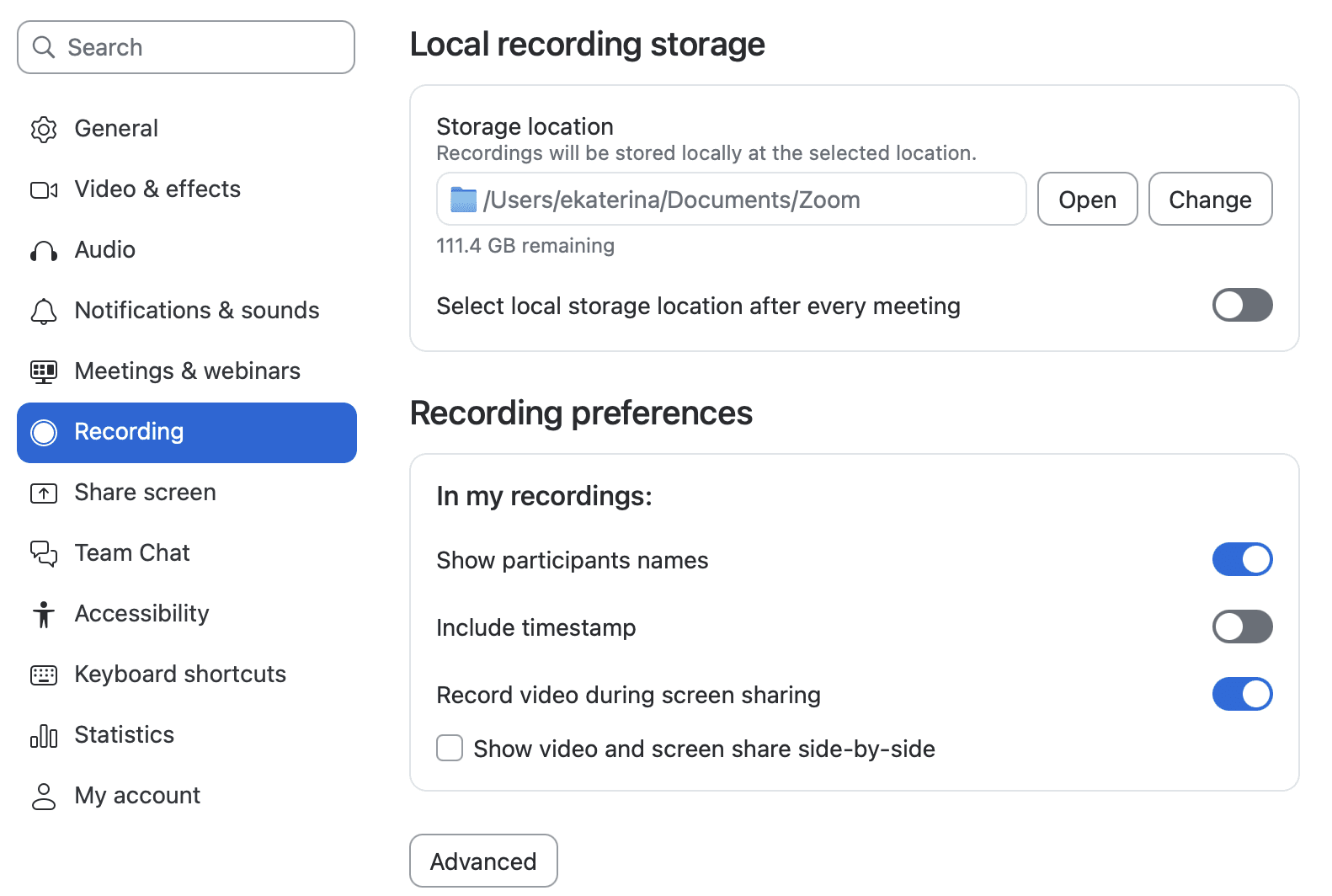
Go to Settings > Recording

Check "Store my recordings at:" and choose a folder on your computer
Uncheck "Optimize for 3rd party video editor" (smaller file size)
Check "Record a separate audio file for each participant" if you need speaker separation
During the Meeting:
Click "Record" button at the bottom of the Zoom window
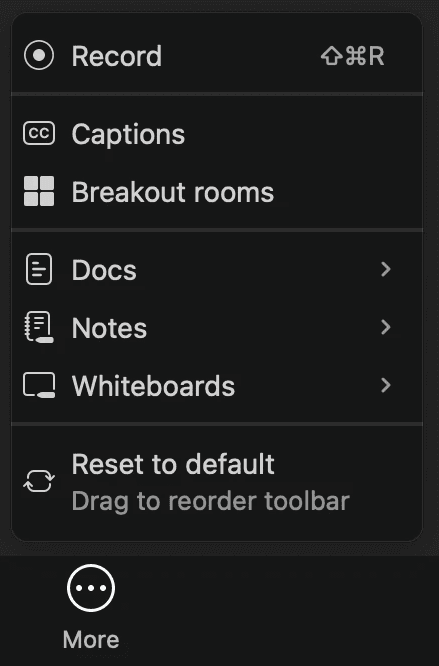
Select "Record on this Computer"
Zoom shows a small recording indicator in the top-left corner
Participants see "Recording" in the participant list next to your name
After the Meeting:
Click "End Meeting"
Zoom automatically converts the recording (takes 1-2 minutes)
File opens in your chosen folder
You get: video file (MP4), audio file (M4A), and chat transcript (TXT)
Zoom Local Recording Pros
✅ Built into Zoom (no extra software needed)
✅ Free for all Zoom users (even Basic plan)
✅ Full control over file storage and sharing
✅ Immediate access (no cloud processing delay)
✅ Can record separate audio tracks per speaker
Zoom Local Recording Cons
❌ Still shows recording indicator to participants
❌ Participants are notified when recording starts
❌ No automatic transcription (you get raw video/audio only)
❌ No AI summaries or action item extraction
❌ Large file sizes (1-hour meeting = 500MB-1GB)
❌ Manual work required to create meeting notes
When to Use Zoom Local Recording
Internal team meetings where everyone is comfortable being recorded
Webinars or training sessions where recording is expected
When you need the raw video file for editing or archival purposes
When you have time to manually review recordings and create notes
Important: Even though local recording is less intrusive than cloud recording, participants still see a recording indicator. Always inform participants before recording.
Method 2: System Audio Capture Tools (Invisible Recording)
System audio capture tools record what you hear through your computer's speakers or headphones. They work at the operating system level, capturing all audio output without joining the Zoom meeting as a participant.
How System Audio Capture Works
These tools create a "virtual audio device" that intercepts audio before it reaches your speakers. From Zoom's perspective, nothing has joined the meeting. There's no bot in the participant list, no recording notification, and no visible indicator.
You simply start the recording tool before your Zoom call, and it captures everything you hear.
Popular System Audio Capture Tools
For Mac:
Audio Hijack ($64, professional-grade)
Piezo ($19, simple and lightweight)
QuickTime Player (free, built into macOS)
For Windows:
Audacity (free, open-source)
OBS Studio (free, designed for streaming but works for audio)
Windows Voice Recorder (free, built into Windows 11)
Step-by-Step: Using Audio Hijack (Mac Example)
Setup:
Download and install Audio Hijack from Rogue Amoeba
Open Audio Hijack
Create a new session: Click "New Session" > "Application Audio"
Select "Zoom" as the application to capture
Set output format to M4A or MP3
Choose where to save recordings
During the Meeting:
Start Audio Hijack recording BEFORE joining Zoom
Join your Zoom meeting normally
Audio Hijack captures everything in the background
No one on the call knows you're recording
After the Meeting:
Stop Audio Hijack recording
Audio file is saved to your chosen location
You have a clean audio file of the entire meeting
System Audio Capture Pros
✅ Completely invisible (no bots, no notifications)
✅ Works with any video platform (Zoom, Teams, Google Meet)
✅ You control all recording files locally
✅ Smaller file sizes (audio-only)
✅ Can run in background without affecting performance
System Audio Capture Cons
❌ Audio-only (no video recording)
❌ No automatic transcription
❌ No speaker attribution (everyone sounds like one continuous audio stream)
❌ No AI summaries or action items
❌ Manual transcription required (expensive and time-consuming)
❌ Technical setup required (not beginner-friendly)
When to Use System Audio Capture
When you need completely invisible recording
For highly sensitive conversations where bots aren't allowed
When you only need audio reference (not full transcripts)
When you're technically comfortable with audio software
Important: Just because recording is invisible doesn't mean you should skip consent. Always inform participants that you're recording, even when using invisible methods. Transparency builds trust.
Method 3: Bot-Free AI Meeting Assistants (Invisible + Automatic Notes)
Bot-free AI meeting assistants combine the invisibility of system audio capture with the intelligence of AI transcription and summarization. They capture audio directly from your device, then automatically generate transcripts, summaries, and action items.
This is the method I use for 90% of my meetings because it eliminates all post-meeting work while keeping conversations natural.
How Bot-Free AI Assistants Work
Tools like Glinky, Krisp, and Sonnet capture system audio the same way audio capture tools do, but they add AI processing on top:
Capture: Record system audio invisibly (no bot joins the meeting)
Transcribe: Convert audio to text with speaker attribution
Summarize: Generate structured meeting notes automatically
Extract: Pull out action items, decisions, and next steps
Sync: Send everything to your CRM or note-taking tools
From the participant's perspective, nothing has changed. From your perspective, you get complete meeting documentation without lifting a finger.
Step-by-Step: Using Glinky for Bot-Free Zoom Recording
Setup (One-Time):
Download Glinky for Mac or Windows
Grant microphone permission (captures system audio)
Connect your calendar (Google or Outlook) for automatic meeting detection
Optional: Connect your CRM (Salesforce, HubSpot, Pipedrive, etc.)
Before the Meeting:
Glinky detects your upcoming Zoom meeting from your calendar
You get a reminder notification 2 minutes before the meeting
Click "Start Glinky" or let it start automatically
During the Meeting:
Join your Zoom meeting normally
Glinky runs invisibly in the background
No bot appears in the participant list
No recording notification shows to participants
You stay completely present in the conversation
After the Meeting:
Click "Stop Recording" when the meeting ends
Glinky processes the audio (1-3 minutes)
You receive:
Full transcript with speaker attribution
AI-generated summary organized by topic
Action items with assignees and deadlines
Key decisions and commitments highlighted
Notes automatically sync to your CRM
Search your conversation history anytime
Bot-Free AI Assistant Pros
✅ Completely invisible (no bots, no notifications)
✅ Automatic transcription with speaker attribution
✅ AI-generated summaries save 30+ minutes per meeting
✅ Action items extracted automatically
✅ CRM sync eliminates manual data entry
✅ Searchable conversation history
✅ Works online and offline (in-person meetings too)
✅ Multi-language support
✅ Glinky includes built-in lead generation (unique differentiator)
Bot-Free AI Assistant Cons
❌ Requires paid subscription for unlimited meetings (though free plans exist)
❌ AI summaries occasionally miss nuance (though you can edit them)
❌ Dependent on audio quality for accurate transcription
When to Use Bot-Free AI Assistants
Client-facing calls where bots would be awkward
Sales conversations where you need CRM updates
Team meetings where you want searchable history
Any meeting where you want to stay present instead of taking notes
When you're managing multiple meetings per day and need automation
Glinky Specific Advantage: Unlike other bot-free tools, Glinky includes built-in lead generation. After your meeting, you can search for new prospects by role, company, industry, and location without switching tools. This makes it ideal for lean teams managing customer conversations and pipeline generation in one platform.
Comparison: Which Method Should You Use?
Feature | Zoom Local Recording | System Audio Capture | Bot-Free AI Assistant (Glinky) |
|---|---|---|---|
Visibility | Recording indicator shown | Completely invisible | Completely invisible |
Ease of Use | Very easy (built-in) | Moderate (technical setup) | Very easy (one-click) |
Transcription | None (manual required) | None (manual required) | Automatic with speaker attribution |
Summaries | None | None | AI-generated automatically |
Action Items | Manual extraction | Manual extraction | Automatic extraction |
CRM Sync | None | None | Automatic (Salesforce, HubSpot, etc.) |
File Size | Large (500MB-1GB/hour) | Medium (50-100MB/hour) | Small (text-based storage) |
Cost | Free | $0-$64 one-time | $0-$50/month |
Best For | Internal meetings, webinars | Sensitive calls, audio reference | Client calls, sales meetings, daily use |
Important: Always Get Consent Before Recording
Regardless of which method you choose, always inform participants when you're recording.
Why Consent Matters
Even though bot-free methods are invisible, ethical and legal considerations require transparency:
Legal compliance: Many states and countries require two-party consent for recording
Trust building: Transparency strengthens relationships, secrecy destroys them
Professional standards: Industry best practices require disclosure
Company policies: Many organizations mandate recording disclosure
How to Ask for Recording Consent (Without Killing the Vibe)
At the start of the call:
"Hey everyone, I'll be taking notes during our conversation so I don't miss anything important. Is everyone comfortable with that?"
For client calls:
"I like to capture our conversations so I can follow up accurately on everything we discuss. I'll share the notes with you afterward. Does that work for you?"
For sales calls:
"I want to make sure I capture all your requirements accurately, so I'll be documenting our conversation. You'll get a summary afterward with all the action items. Sound good?"
For sensitive conversations:
"I'd like to record our discussion so we have an accurate record. The recording stays private between us, and I can delete it anytime you'd like. Are you comfortable with that?"
Most people say yes when you frame recording as a benefit to them (accurate follow-up, shared notes, nothing missed).
Advanced Tips: Getting Better Recording Quality
For All Methods
Use headphones with a microphone: Reduces echo and background noise
Test audio before important calls: Do a 2-minute test recording to verify quality
Close unnecessary apps: Prevents system slowdowns during recording
Mute notifications: Avoid recording dings and alerts
Use a quiet space: Background noise degrades transcription accuracy
For Zoom Local Recording
Enable "Record a separate audio file for each participant" in Zoom settings
Use "Speaker View" instead of "Gallery View" for smaller video file sizes
Disable "Optimize for 3rd party video editor" for faster processing
For System Audio Capture
Set audio quality to 256kbps for balance between quality and file size
Use M4A or MP3 format for universal compatibility
Create folder structure like "Recordings/2026/January/Client-Name" for organization
For Bot-Free AI Assistants (Glinky)
Connect your calendar for automatic meeting detection and reminders
Use templates for different meeting types (client calls, team meetings, interviews)
Tag meetings by project or client for easy searching later
Review and edit summaries within 24 hours while details are fresh
Set up CRM sync to eliminate manual data entry
Real-World Use Cases: When Each Method Shines
Scenario 1: Weekly Team Standup
Best Method: AI Assistant with Bot and video recording (Glinky)
Why: Your team expects recording, you need video for remote members who miss the meeting, and you're archiving for future reference. You want action items extracted automatically.
Workflow: Glinky captures invisibly, generates summary, syncs to Salesforce, you review and send follow-up email in 5 minutes..
Scenario 2: Client Discovery Call
Best Method: Bot-Free AI Assistant (Glinky)
Why: You need to stay present and build rapport, not type notes. You need accurate CRM updates. You want action items extracted automatically.
Workflow: Glinky captures invisibly, generates summary, syncs to Salesforce, you review and send follow-up email in 5 minutes.
Scenario 3: Sensitive Legal Discussion
Best Method: System Audio Capture
Why: You need an audio reference for accuracy, but bots and third-party AI aren't allowed due to confidentiality requirements.
Workflow: Record with Audio Hijack, store encrypted file locally, manually create notes for the record.
Scenario 4: Customer Success Check-In
Best Method: Bot-Free AI Assistant (Glinky)
Why: You're tracking customer health, renewal risk, and expansion opportunities. You need searchable history across all customer conversations.
Workflow: Glinky captures call, identifies risk signals and opportunities, syncs to CRM with customer record, you spot trends across multiple check-ins.
Scenario 5: Sales Demo with Enterprise Prospect
Best Method: Bot-Free AI Assistant (Glinky)
Why: Enterprise prospects often prohibit bots. You need detailed notes on requirements, objections, and next steps. You're managing a complex buying committee.
Workflow: Glinky captures invisibly, identifies all stakeholders mentioned, extracts technical requirements, highlights objections, syncs to opportunity record in Salesforce.
Troubleshooting Common Recording Issues
"My Zoom recording has no audio"
Fix: Check that your microphone is set as the default recording device in system settings. In Zoom, go to Settings > Audio and test your microphone.
"System audio capture only records my voice, not participants"
Fix: You're capturing microphone input instead of system audio. Reconfigure your capture tool to record "System Audio" or "Loopback Audio" instead of "Microphone."
"Glinky transcript is inaccurate"
Fix: Audio quality issues are the most common cause. Use headphones, reduce background noise, and ensure strong internet connection. Glinky's accuracy improves with clear audio.
"Recording file is too large"
Fix: Use audio-only recording instead of video. For Zoom local recording, disable HD video. For system capture, use compressed formats like M4A or MP3 at 128-256kbps.
"I forgot to start recording"
Fix: Use automatic meeting detection. Glinky can detect when your microphone activates and remind you to start recording. Set up calendar integration for meeting-based reminders.
The Verdict: Which Method Should You Use?
After testing all three methods across dozens of meetings, here's my recommendation:
For most professionals: Use a bot-free AI assistant like Glinky.
The time savings are massive. Instead of spending 30 minutes after each meeting creating notes, updating your CRM, and drafting follow-ups, Glinky does it automatically in 2 minutes. For teams taking 10+ meetings per week, this eliminates 5+ hours of administrative work.
The invisible capture keeps conversations natural. Clients don't see bots. Prospects don't get distracted by recording notifications. You stay present and build better relationships.
The all-in-one platform eliminates tool sprawl. Instead of juggling a note-taker, CRM, and prospecting tool, Glinky combines everything. This is especially valuable for lean teams at growth-stage companies who need maximum productivity with limited headcount.
For occasional use: Use Zoom local recording.
If you only record a few meetings per month, and they're internal team meetings where recording is expected, Zoom's built-in local recording is sufficient. It's free, easy, and works immediately.
For sensitive situations: Use system audio capture.
When you need an audio reference for legal, compliance, or confidentiality reasons, and third-party AI isn't allowed, tools like Audio Hijack give you local control without cloud processing.
Try Glinky Free: Bot-Free Zoom Recording Made Easy
Glinky captures your Zoom meetings invisibly, generates AI summaries automatically, and syncs everything to your CRM without manual work.
Free Plan Includes:
10 hours/mo of meeting processing
Meeting summaries
Action item extraction and calendar sync
100 lead generation credits per month
No meeting bots required
No credit card needed
Start capturing Zoom meetings without bots → https://www.glinky.ai/
FAQs About Recording Zoom Meetings Without Bots
Is it legal to record Zoom meetings without telling participants?
No. Even though bot-free methods are invisible, you must inform participants before recording. Legal requirements vary by location:
One-party consent states: Only the recorder needs to know (but ethical standards still recommend disclosure)
Two-party consent states: All participants must consent before recording
International calls: Follow the strictest law that applies to any participant
Always disclose recording at the start of the call. It's not just legal compliance, it's professional courtesy.
Can Zoom detect if I'm using system audio capture or bot-free tools?
No. System audio capture and bot-free AI assistants like Glinky record at the operating system level, outside of Zoom's application. Zoom cannot detect these recordings because nothing joins the meeting as a participant.
However, this doesn't change your legal and ethical obligation to inform participants.
Does Glinky work with other video platforms besides Zoom?
Yes. Glinky captures system audio, so it works with:
Zoom
Microsoft Teams
Google Meet
Webex
GoToMeeting
Any video conferencing platform
In-person meetings (using your device's microphone)
What's the difference between Zoom cloud recording and local recording?
Cloud recording:
Saves to Zoom's cloud storage
Requires paid Zoom account (Pro or higher)
Shows recording notification to all participants
Provides automatic transcription (paid feature)
Accessible from any device via Zoom portal
Local recording:
Saves to your computer
Available on all Zoom plans (including free)
Still shows recording indicator
No automatic transcription
Only accessible from the computer that recorded it
Both methods show visible recording indicators to participants.
Can I record Zoom meetings on my phone without bots?
Zoom's mobile app doesn't support local recording. However, Glinky's iOS app can record in-person meetings and phone calls using your device's microphone. For Zoom meetings on mobile, you'll need to use Zoom's cloud recording (which shows notifications) or join from a computer with bot-free recording tools.
How accurate is Glinky's transcription compared to manual notes?
Glinky's transcription accuracy is 90-95% with clear audio, compared to 60-70% accuracy for manual note-taking (people miss details while typing). The AI summary captures 100% of action items and decisions because it processes the full transcript, while manual notes often miss items mentioned in passing.
For best accuracy:
Use headphones with a microphone
Ensure strong internet connection
Minimize background noise
Speak clearly
Does Glinky store my recordings in the cloud?
Glinky processes audio to generate transcripts and summaries, then permanently deletes the audio file. Only text-based transcripts and summaries are stored, encrypted in EU servers (Frankfurt, Germany). This is more secure than storing full audio/video recordings and complies with GDPR.
You control all data and can delete any meeting record anytime.
Can I use Glinky for free, or do I need a paid plan?
Glinky offers a free plan with:
Unlimited conversation capture
Basic meeting summaries
Action item extraction
30-day conversation history
Paid plans ($19.99-$49.99/month) add:
Advanced summaries with speaker attribution
Unlimited conversation history
CRM integration
Lead generation capabilities
Priority support
Most professionals find the free plan sufficient for getting started.
What happens if I forget to start recording before my Zoom meeting?
Glinky offers automatic meeting detection and reminders:
Calendar integration: Detects meetings from Google Calendar or Outlook
Microphone-based reminders: Notifies you when it detects meeting audio
One-click start: Quick access from menu bar or system tray
If you completely forget, you can still manually review the Zoom chat transcript for basic notes, but you'll miss the full conversation context.
How is Glinky different from Otter, Fireflies, or other AI note-takers?
Glinky is bot-free. Tools like Otter and Fireflies send visible bots to join your meetings, which participants can see and which can make conversations feel awkward.
Glinky is all-in-one. Beyond meeting notes, Glinky includes:
Automatic CRM sync (Salesforce, HubSpot, Pipedrive, etc.)
Built-in lead generation (search for prospects without switching tools)
Offline recording for in-person meetings
This makes Glinky ideal for lean teams at growth-stage companies who need to maximize productivity across the full customer lifecycle without juggling multiple tools.
People also read
10 Sales Enablement Best Practices to Unify Your Revenue Engine in 2026
Productivity
Mar 13, 2026

How to Manage Sales Pipeline for Predictable Revenue Growth
Productivity
Mar 14, 2026

How to Qualify Leads in Sales Without Wasting Time
Productivity
Mar 17, 2026

What is Conversation Intelligence? A Practical Guide for Sales Teams
Productivity
Mar 18, 2026

Top 10 Sales Discovery Questions That Close More Deals
Productivity
Mar 25, 2026
Taking Minutes of Meeting: A Guide to Transforming Chaos into Action
Productivity
Feb 16, 2026
Action Items List: A Practical Guide to Drive Real Results
Productivity
Feb 19, 2026
Master the summary of a meeting for clear decisions and follow-ups
Productivity
Feb 22, 2026
Track Action Items: A Practical Guide to Using AI for Flawless Follow-Up
Productivity
Feb 17, 2026
Unlock: How to Take Notes on a Computer for Peak Productivity in 2026
Productivity
Feb 26, 2026
How to Record Google Meet: A Complete Guide for 2026
Productivity
Mar 4, 2026
12 Best AI Note Taking App Choices for 2026: The Definitive Guide
Productivity
Mar 6, 2026
How to Improve Customer Retention: Practical Tips to Boost Loyalty
Productivity
Mar 8, 2026

10 Client Communication Best Practices to Master in 2026
Productivity
Mar 7, 2026
The 12 Best AI Meeting Assistant Tools for 2026: A Deep Dive
Productivity
Mar 15, 2026
Your Guide to the Ultimate AI Email Writer
Productivity
Feb 27, 2026
10 Essential Customer Success Best Practices for 2026
Productivity
Mar 1, 2026
Your Guide to Sales Call Recording Software in 2026
Productivity
Mar 2, 2026
How to Take Better Meeting Notes and Drive Real Results
Productivity
Mar 5, 2026
Top 10 Picks for best crm for small business
Productivity
Mar 3, 2026
What is an Ideal Customer Profile: A Guide to Driving Growth
Productivity
Mar 9, 2026
Automated meeting minutes: Turn talks into actionable notes
Productivity
Mar 11, 2026

The Top 12 AI Powered Sales Tools to Boost Revenue in 2026
Productivity
Mar 16, 2026
AI Note Taking For Meetings: Fast, Smart AI Notes That Drive Collaboration
Productivity
Mar 19, 2026
Understanding Transcription Service Cost: A 2026 Guide
Productivity
Mar 20, 2026
Master Your Meetings With The Note Taking Charting Method
Productivity
Feb 18, 2026
The Ultimate 2026 Guide: 8 Meeting Follow Up Email Template Scenarios
Productivity
Feb 20, 2026
Master the Art of Taking Meeting Notes for Actionable Outcomes
Productivity
Feb 25, 2026

12 Best Sales Lead Generation Tools to Boost Your Pipeline in 2026
Productivity
Mar 10, 2026
Translation Vs Transcription: Which Service Do You Really Need?
Productivity
Mar 12, 2026
Mastering the goals of a meeting to drive decisions and boost team alignment
Productivity
Mar 23, 2026

The 12 Best Free AI Email Writer Tools for 2026
Productivity
Mar 22, 2026
A Guide to AI Sales Enablement Platforms in 2026
Productivity
Mar 21, 2026

Automate Follow Up Emails: Actionable Insights for Boosting Sales & Efficiency
Productivity
Mar 26, 2026

Follow Up Email Subjects That Convert: Increase Opens and Replies
Productivity
Feb 17, 2026

Your Playbook for Outbound Lead Generation in 2026
Productivity
Feb 28, 2026
Your Essential Meeting Action Items Template to Drive Results
Productivity
Feb 23, 2026
Your Guide to Using an Email Writer AI for Maximum Impact
Productivity
Feb 23, 2026
8 Essential Ground Rules at Meetings to Maximize Productivity in 2026
Productivity
Mar 24, 2026
Otter.ai vs Glinky
Productivity
Feb 5, 2026
AI Tools for Startup Founders [2026]
Productivity
Feb 4, 2026
Best AI Tools for Startups [2026]
Tools
Feb 3, 2026
Sales Call Notes: How to Capture Every Detail Without Losing the Deal
How to
Feb 2, 2026
How to Take Meeting Notes: 7 Methods That Actually Work [2026]
How to
Jan 14, 2026
![AI Meeting Minutes | Free Forever [2026]](https://framerusercontent.com/images/zYQGRjgLX63tiouLTK65LvCcjK8.png?width=402&height=263)
AI Meeting Minutes | Free Forever [2026]
How to
Jan 13, 2026
Bot-Free AI Meeting Notes: We Tested the 6 Best Tools in 2026
Tools
Jan 8, 2026
Glinky vs Fireflies.ai
Tools
Jan 7, 2026
15 Best AI Tools to Boost Your Productivity in 2026
Productivity
Jan 6, 2026